

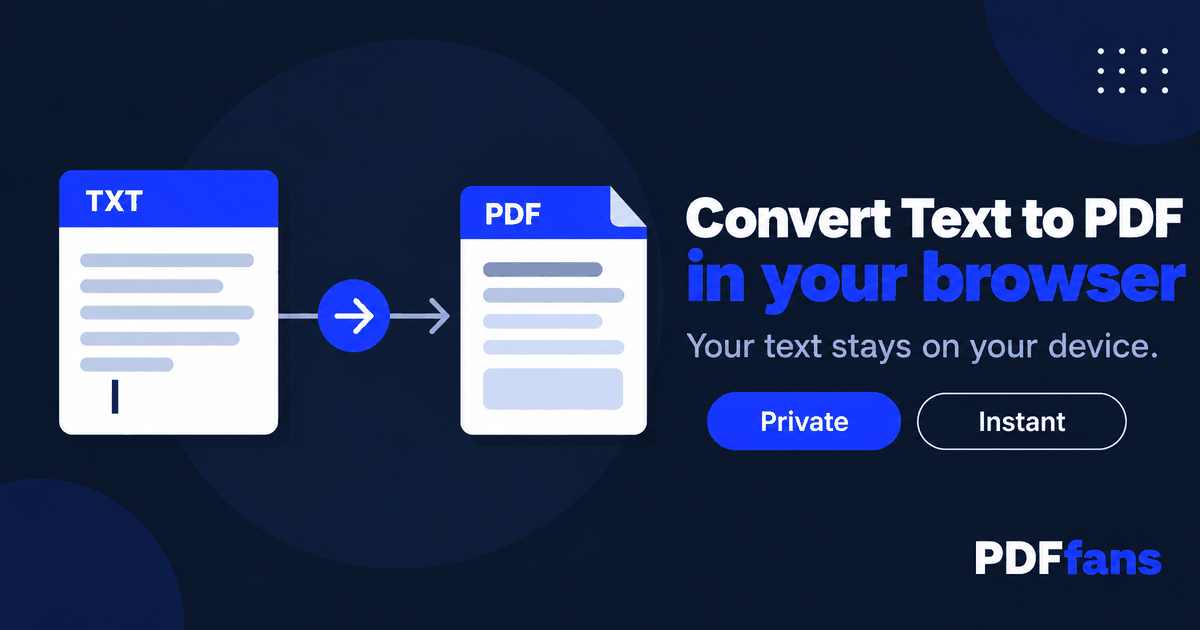
You have a block of text, maybe meeting notes, a log file, a recipe, or a draft that needs to look final, and the place you are sending it only accepts PDF. Copying it into a document and fiddling with fonts is more work than the job deserves.
There are three quick ways to convert text to PDF for free: a browser tool, the print-to-PDF feature already built into your computer, or a word processor. This guide walks through each one, shows where each falls short, and helps you pick. If you want the fastest route, open Text to PDF and follow Method 1.
In This Guide
- Which method fits your text
- Method 1: A browser tool
- Method 2: Print to PDF on Windows or Mac
- Method 3: A word processor
- Common problems and fixes
- FAQ
Which Method Fits Your Text
| Method | Best for | Trade-off |
|---|---|---|
| Browser tool | Quick conversion of pasted text or a TXT file | Basic layout only |
| Print to PDF | A single TXT file already open in Notepad or TextEdit | Little control over margins and page size |
| Word processor | Text that needs headings, bold, or images | Slowest, needs an app or account |
Plain text has no formatting to preserve, so the real question is how much you want to add. If the answer is "nothing", the first two methods are all you need.
Method 1: A Browser Tool
- Open Text to PDF.
- Add your text using the options on the page.
- Choose the page settings if the tool offers them, such as page size and font size.
- Convert and download the PDF.
- Open the file and scroll through it. Check the first and last page, and any line with special characters.
The tool runs in your browser tab, so the text is processed on your own device instead of being sent to a server. That is worth knowing when the text is a contract draft or personal notes.
Method 2: Print to PDF on Windows or Mac
Windows (Notepad)
- Open the TXT file in Notepad.
- Press Ctrl+P.
- Choose Microsoft Print to PDF as the printer.
- Click Print and name the file.
Mac (TextEdit)
- Open the file in TextEdit.
- Press Command+P.
- Open the PDF menu at the bottom left of the print dialog.
- Choose Save as PDF.
This works everywhere and needs nothing installed. The catch is control. Margins and fonts follow the app's defaults, and if the printer option is missing on Windows, the feature is switched off in Windows Features.
Method 3: A Word Processor
Paste the text into Word, Google Docs, or LibreOffice Writer. Add headings, bold the important lines, drop in an image if you need one, then export: File, Download, PDF Document in Google Docs, or Save As, PDF in Word.
This is the right call when the PDF has to look designed. For plain notes it is overkill, and a long document takes real time to format.
Common Problems and Fixes
- Long lines run off the page. Add line breaks in the source text, or reduce the font size so lines fit the page width.
- Odd symbols instead of letters. Save the TXT file as UTF-8 before converting. Accented and non-Latin characters are where converters slip most often, so test one line before converting a long file.
- Everything looks cramped. Plain-text conversions use one font at one size. If you need spacing and structure, use Method 3.
- The PDF is bigger than expected. Long text files can produce many pages. Compress PDF shrinks it, and our guide on compressing a PDF to a target size covers upload limits.
- You need several text files in one PDF. Convert each one, then join them with Merge PDF.
FAQ
How do I convert a TXT file to PDF for free?
Use a browser converter, or open the file in Notepad or TextEdit and print it to PDF. Both are free and take under a minute.
Can I turn text I typed into a PDF without saving a file first?
Yes. Paste the text into a browser tool, or into a word processor, and export as PDF. You do not need to create a TXT file first.
Will formatting like bold or headings survive?
No. Plain text carries no formatting. If you want bold or headings, add them in a word processor before exporting.
Why do some characters look wrong in the PDF?
The source file usually uses an encoding the converter did not expect. Re-save the TXT file as UTF-8 and convert again.
Related: Text to PDF, Merge PDF, Compress PDF. Background: Plain text on Wikipedia.
Comments
Leave a Comment