

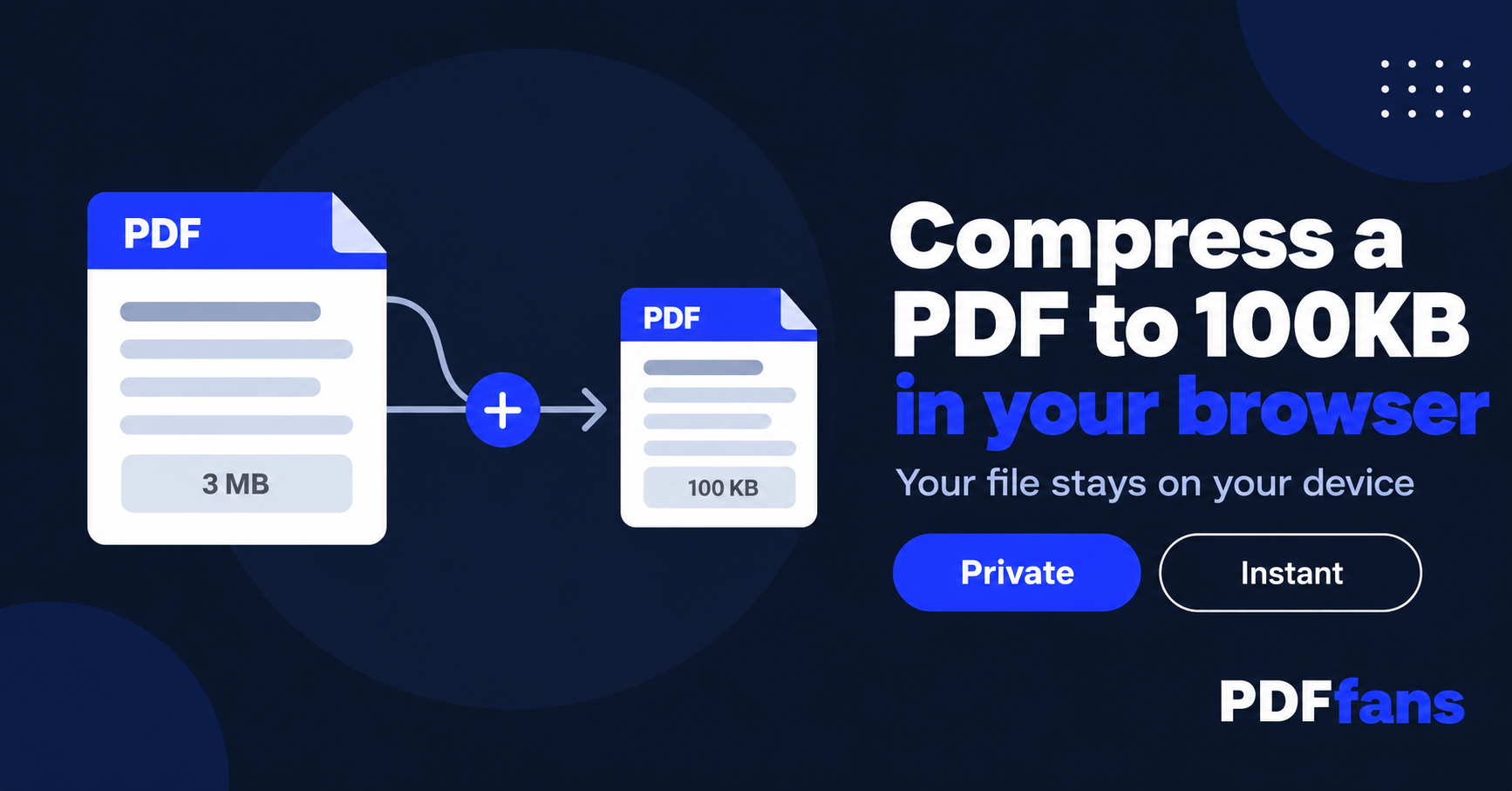
The upload form says "maximum file size 200KB" and your PDF is 3MB. You can't resubmit until it fits, and the deadline is tonight. This is the most common reason people go looking for a way to compress a PDF to an exact size.
Hitting a specific target is mostly a matter of knowing what is inflating the file and choosing the right compression level. This guide shows how to compress PDF to 100KB, 200KB, 300KB, 500KB, or 1MB using PDFfans Compress PDF, which is free to use.
In This Guide
- Why your PDF is so big
- Step-by-step: compress a PDF to a target size
- What to expect at each size target
- When the file won't shrink enough
- FAQ
Why Your PDF Is So Big
Text is tiny. A page of pure text is usually a few kilobytes. Size comes from images: a scanned page or a phone photo dropped into a document can weigh 1MB or more on its own. Embedded fonts add a little. Everything else is noise.
That tells you where the savings are. A 20-page scan will always be heavier than a 20-page report exported from Word, and the scan is the one that needs real compression.
Step-by-Step: Compress a PDF to a Target Size
- Open Compress PDF in your browser.
- Drop your file onto the page, or click to choose it.
- Pick the compression level closest to your target. Start stronger if you need a very small file, gentler if the document has to stay readable.
- Run the compression and check the new size shown on screen.
- Download the result and open it. Zoom in on small text and any signatures or stamps before you send it anywhere.
The tool runs in your browser tab. The file never leaves your device, so there is nothing for a server to see, store, or leak. That matters when the PDF is a contract, an ID scan, or a medical form.
What to Expect at Each Size Target
These are realistic ranges, not guarantees. The starting content decides the outcome.
- Under 1MB: almost any document gets here. Scans of a few pages usually do, at little visible cost.
- Under 500KB: fine for text documents and light scans. Photos will lose some sharpness.
- Under 300KB and 200KB: works for short documents. Expect softer images, but printed text usually stays legible.
- Under 100KB: possible for a few pages of mostly text. A photo-heavy file will need more than compression alone.
A quick way to judge your odds before you start: check what the file is made of. A PDF exported from Word or Google Docs is mostly text and shrinks easily. A PDF made from phone photos or a flatbed scan is mostly image data, and every page fights for the same few kilobytes. Ten scanned pages will not fit in 100KB no matter which tool you use, but they can often reach 500KB or 1MB with the compression level turned up.
If a form asks for "less than 1MB", aim a little lower than the limit. Some upload systems count size differently than your file manager does, and a file that sits right at the line can still get rejected.
When the File Won't Shrink Enough
If compression alone doesn't get you there, change what goes into the file.
- Cut pages you don't need. Use Split PDF to keep only the pages the form asks for.
- Trim the margins. Scans often carry wide dead borders. Crop PDF removes them.
- Rescan at lower resolution. 150 DPI reads fine on screen. 600 DPI is rarely needed for anything you email.
- Shrink photos before combining. If you are building a PDF from images, reduce the images first, then merge with Merge PDF.
One mistake to avoid: compressing the same file again and again. Each pass throws away more detail and the gains get smaller. Go back to the original and choose a stronger level once.
Want the quality-first approach instead? Our guide on compressing a PDF without losing quality covers it.
FAQ
Can I compress a PDF to exactly 100KB?
Not to the exact byte, but most text-heavy documents can get under 100KB. Choose a strong compression level and check the size shown after processing.
Will compressing a PDF make the text blurry?
Usually not. Compression mainly reduces image data, so text stays sharp while photos and scans lose some detail. Always zoom in on the result before sending.
Is it safe to compress a confidential PDF?
With a tool that runs in your browser, yes. The file is processed on your own device and is not sent to a server.
Why is my PDF still large after compression?
Large embedded photos or high-resolution scans are the usual cause. Remove unneeded pages, crop margins, or rescan at a lower resolution, then compress again from the original file.
Related: Compress PDF, Split PDF, Merge PDF, Merge multiple PNG files into one PDF. Background on the format: PDF on Wikipedia.
Comments
Leave a Comment