

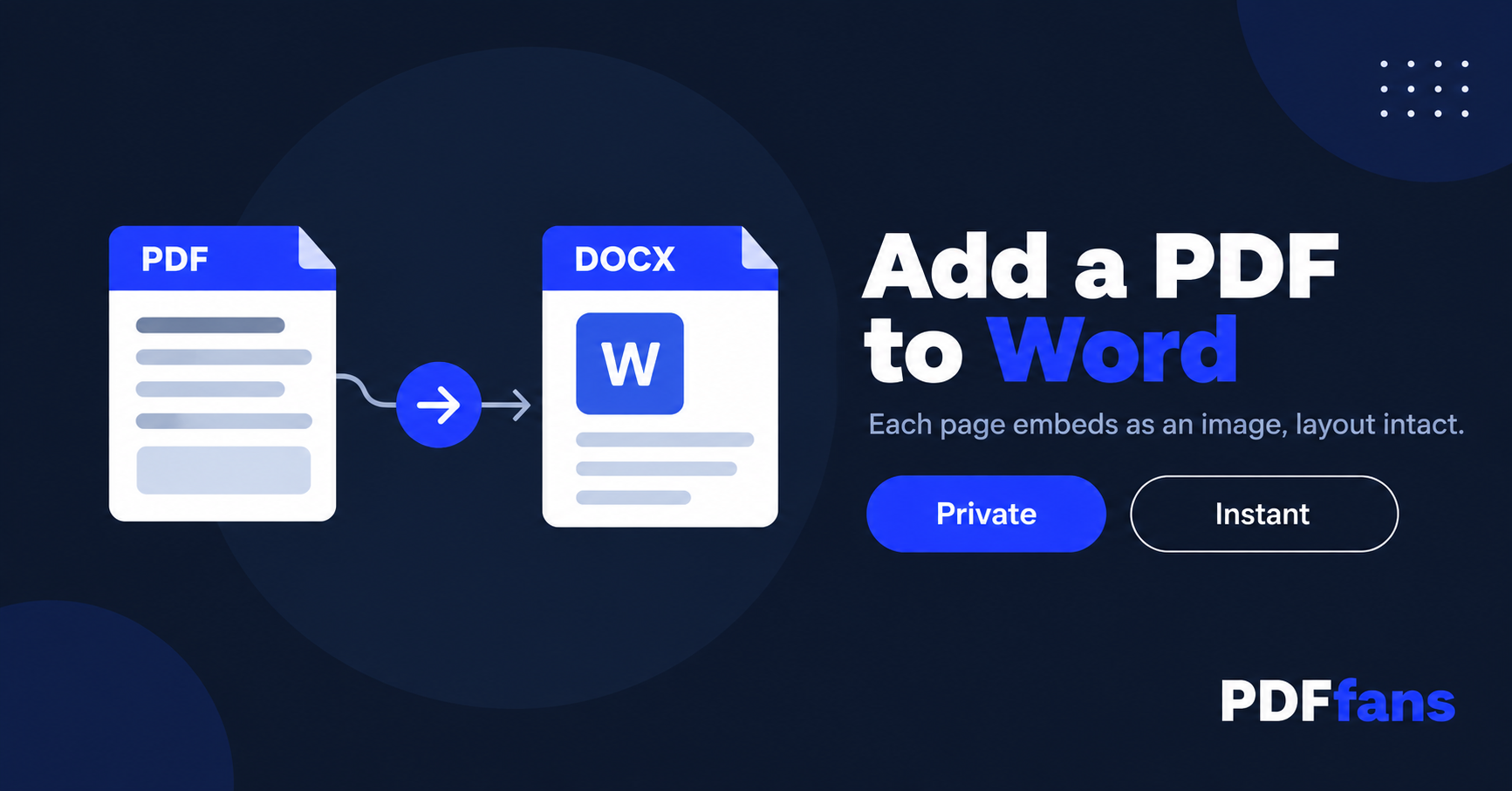
Trying to add a PDF to a Word document usually means one of three things: you want the PDF pages to appear inside the Word file, you want to paste the text, or you just want to attach the file so the reader can open it separately. Each goal has a different method.
Method 1: Embed PDF Pages Directly into Word (Keeps Layout Intact)
This is the fastest option when you need the PDF to look exactly the same inside Word — logos, signatures, tables, scanned pages, all of it.
- Go to PDFfans PDF to Word tool and upload your PDF.
- Click Preview PDF Pages — every page appears as a thumbnail.
- Select the pages you want to embed (or use Select All).
- Choose your page size and margins, then click Convert to Word.
- Download the .docx file. Open it in Word — each PDF page appears as a full-page image.
The conversion runs in your browser. Your file stays on your device and never reaches a server.
One important note: the text inside the embedded pages is a visual image, not typed text. You can read it, print it, and share it — but you can't click into it and edit individual words. If you need editable text from a PDF, Method 2 covers that.
Method 2: Copy Text from a PDF into Word
If the PDF is a standard digital file (not a scanned image), you can often select and copy the text directly.
- Open the PDF in your browser or in Adobe Reader.
- Click and drag to select the text you want. Use Ctrl+A (Windows) or Cmd+A (Mac) to select all text on the page.
- Copy (Ctrl+C / Cmd+C).
- Switch to your Word document and paste (Ctrl+V / Cmd+V).
This works well for simple text. Tables and columns often come through garbled — you'll need to reformat them manually.
Method 3: Insert the PDF as a Linked File Object
If you just want readers to open the PDF separately from the Word document, you can insert it as an object.
- In Word, go to Insert → Object → Object from file.
- Browse to your PDF and select it.
- Check "Display as icon" if you want it to show as a small icon rather than a thumbnail.
- Click OK.
The PDF is now linked inside the Word document. Readers can double-click the icon to open it. Note: this only works reliably when sharing the file with other Windows users who have Acrobat Reader installed.
Which Method Should You Use?
- Need the PDF to look the same inside Word, including images and formatting → Method 1
- Need the text to be editable in Word → Method 2 (or an OCR tool for scanned PDFs)
- Want to attach the PDF for readers to open separately → Method 3
Frequently Asked Questions
Can I add a multi-page PDF to Word?
Yes. The PDFfans tool lets you select individual pages from a multi-page PDF and embed whichever ones you need. You can include the full document or just specific pages.
Does this work on Mac?
Method 1 works on any device with a browser — Mac, Windows, iPhone, Android. Method 3 (Insert Object) works on Mac Word but the linked file may not open on other systems without Acrobat installed.
What if the PDF is a scanned document?
Method 1 still works — the scanned page is captured as an image and embedded in Word. If you need the scanned text to be editable, you need an OCR tool first to convert the scan into selectable text.
Will the PDF look the same inside Word?
With Method 1, yes — the page is captured as a high-resolution image, so fonts, columns, and graphics appear exactly as they do in the original PDF. With Method 2, the text may need manual reformatting depending on how the PDF was built.
Comments
Leave a Comment