

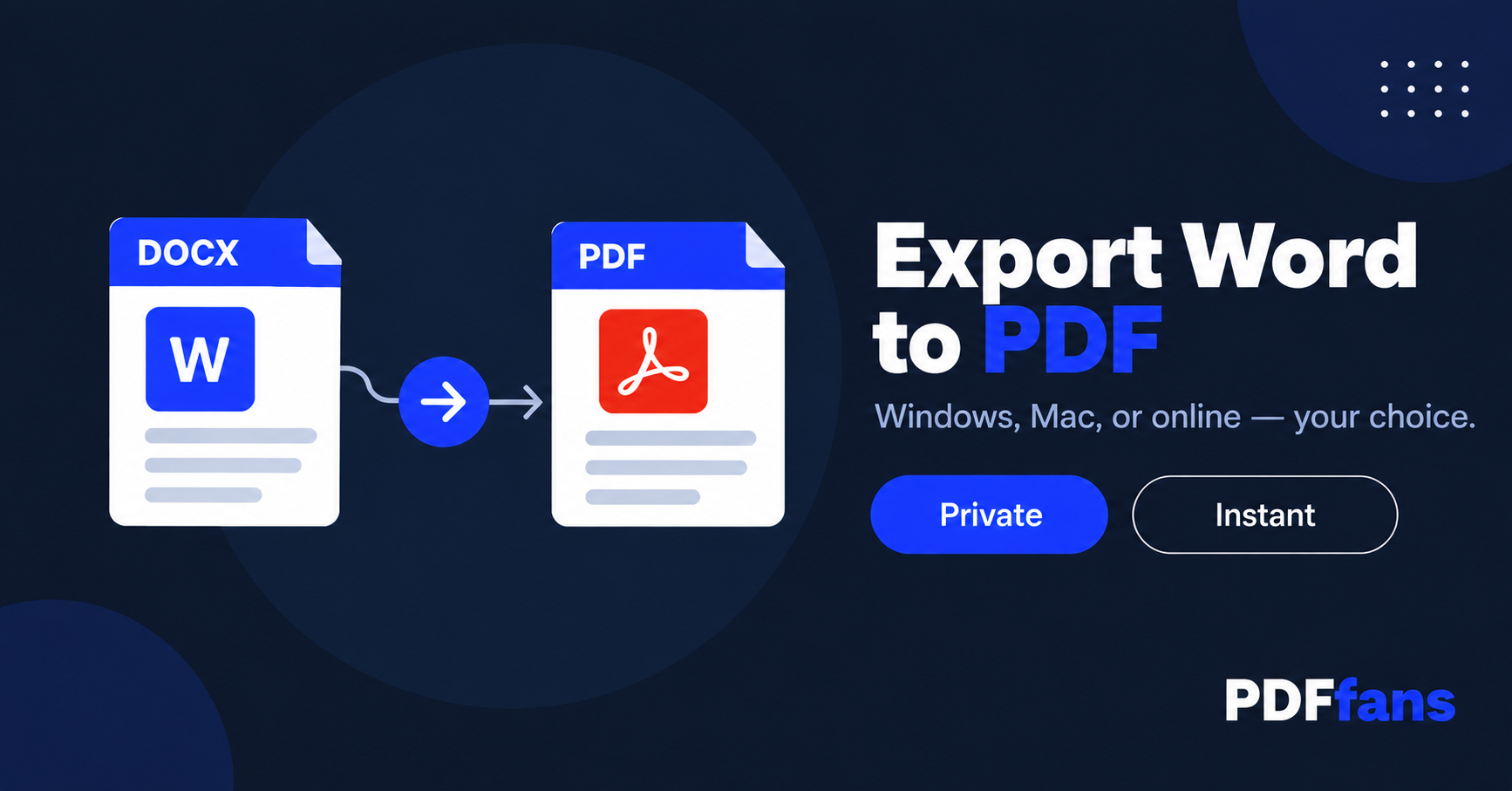
Word calls it Save As, Mac calls it Export, and sometimes Print to PDF is the fastest route. All three produce a PDF that looks identical on every screen.
Export Word to PDF on Windows
- Open the document in Microsoft Word.
- Click File → Save As.
- Open the file type dropdown and select PDF (*.pdf).
- Choose a location and click Save.
Optional: click Options before saving to set a page range or choose between Standard and Minimum size.
Export Word to PDF on Mac
- Open the document in Word for Mac.
- Click File → Save As.
- In the format dropdown, choose PDF.
- Click Export.
Export Word to PDF Online (Any Device)
- Open PDFfans Word to PDF converter.
- Upload your .docx file and check the live preview.
- Click Convert to PDF and download.
The conversion runs in your browser tab. Your file stays on your device.
Which Method Is Best?
- Have Word installed → built-in export
- Need conversion from any app → Print to PDF
- No Word installed or need privacy → browser tool
Frequently Asked Questions
Does exporting to PDF change the formatting?
It should not, but complex documents with custom fonts can shift slightly. Word built-in export is most consistent.
Can I export just a few pages?
Yes with Word export — click Options before saving and set a page range.
Can I export a password-protected Word document?
Remove the password first via File → Info → Protect Document, then export normally.
Does the browser tool work on mobile?
Yes. Works on iPhone and Android in Safari or Chrome.
Comments
Leave a Comment