

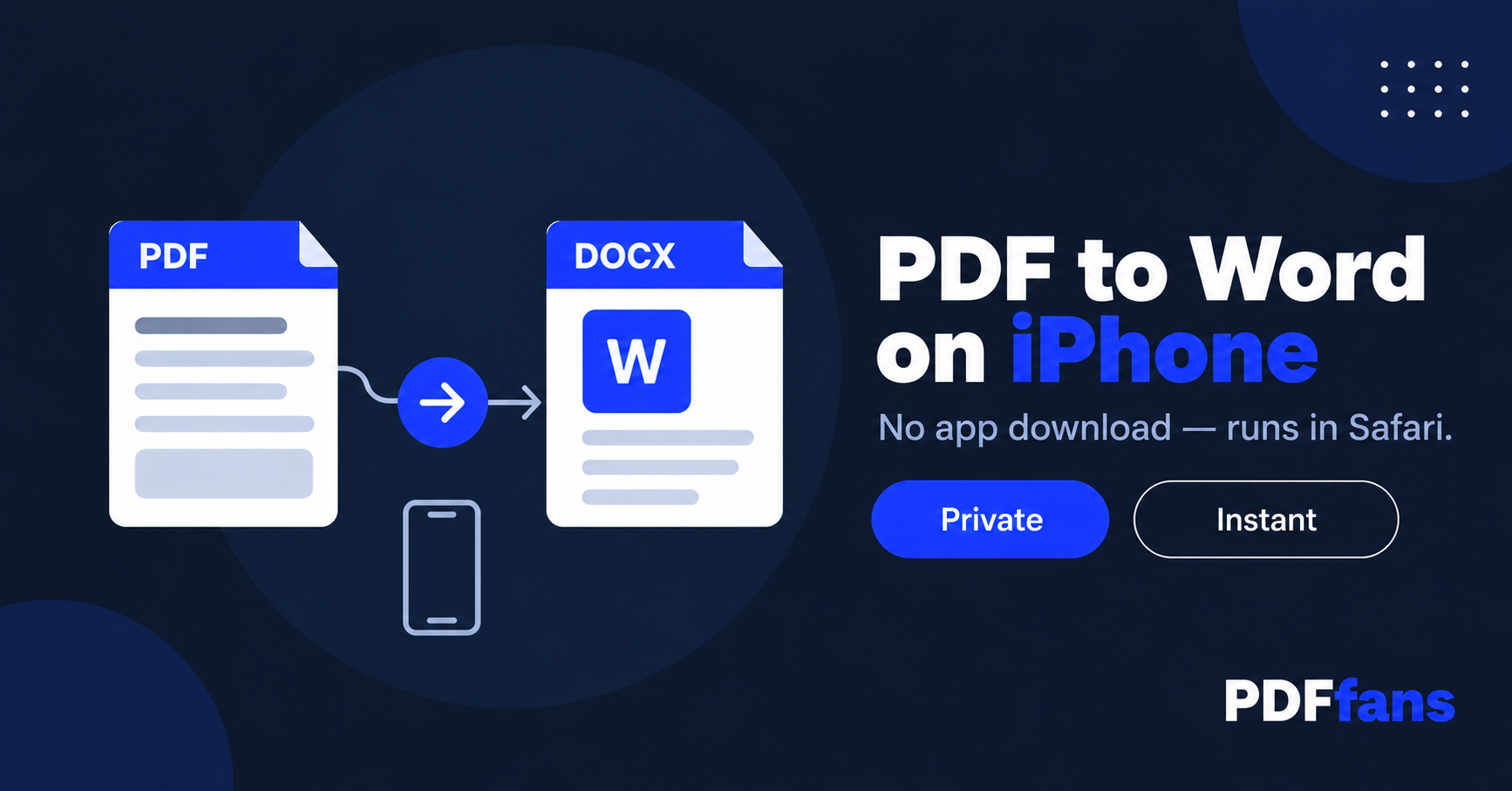
Most PDF-to-Word apps on the App Store either cost money, add a watermark, or upload your file to a remote server. Here is how to do it on iPhone without downloading anything — just Safari.
How to Convert PDF to Word on iPhone
- Open Safari and go to PDFfans PDF to Word tool.
- Tap Choose PDF File and select your PDF from Files or iCloud Drive.
- Tap Preview PDF Pages — each page loads as a thumbnail.
- Tap pages to include, then tap Convert to Word.
- Tap Download Linked File — the .docx saves to your Files app.
The conversion runs inside your Safari tab. The PDF never gets sent to any server.
What the Result Looks Like
Each PDF page becomes a high-resolution image embedded inside a Word document. Open it in Microsoft Word for iOS or Pages — every page appears exactly as in the original. The text is not editable — it is a visual copy.
What If You Need Editable Text from a PDF on iPhone?
Extracting editable text requires OCR, which the browser tool does not do. iOS 16+ Live Text can read text from images one at a time. For full OCR on multi-page PDFs, desktop software is more practical.
Frequently Asked Questions
Does this work on iPad too?
Yes. The browser tool works on any iOS or iPadOS device in Safari or Chrome.
Where does the .docx go on iPhone?
Safari saves it to the Downloads folder in the Files app. You can move it to iCloud Drive or open it in Word for iOS.
Does my PDF get uploaded to a server?
No. The tool runs in your Safari tab. The PDF is processed locally on your iPhone.
Can I convert a scanned PDF on iPhone?
Yes — the tool renders each page as an image regardless of whether the PDF contains text or is a scan.
Comments
Leave a Comment