

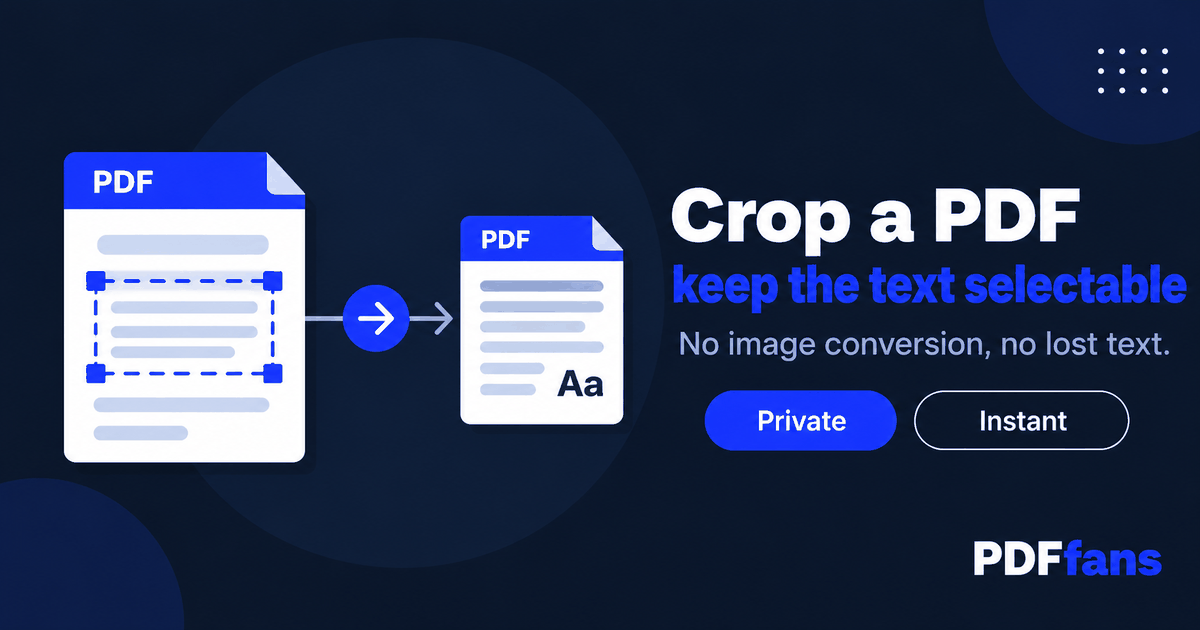
You cropped a PDF, the margins are gone, and then you try to copy a sentence. Nothing highlights. The page is now a picture of text, and the file got bigger on top of it.
That happens when a cropping tool redraws every page as an image instead of changing the visible area of the page. This guide shows how to crop PDF pages so the text stays selectable and searchable, how to check the result in ten seconds, and one limit of cropping you should know before you send the file anywhere. You can follow along in PDFfans Crop PDF.
In This Guide
- Why some crops turn text into an image
- Step-by-step: crop a PDF
- How to check the result
- What cropping does not do
- When cropping is the right fix
- FAQ
Why Some Crops Turn Text Into an Image
A PDF page has a defined visible area. A proper crop changes that area and leaves everything else as it was, so the text, fonts, and links on the page are untouched.
Some tools take a shortcut. They render each page to a picture, cut the picture down, and rebuild a PDF from the images. It looks the same on screen, but the text layer is gone. You lose search, copy and paste, and screen reader support, and image-based pages usually make the file heavier.
If your original PDF had real text, your cropped one should too.
Step-by-Step: Crop a PDF
- Open Crop PDF in your browser.
- Add your PDF. The first page appears with a crop box already placed.
- Drag the box, or its edges, to frame the area you want to keep. The presets are a fast starting point, for example a centered area, if you would rather adjust than draw from scratch.
- Decide how far the crop applies. Keep Apply this crop to all pages on for a uniform trim. Turn it off to crop each page differently, then move through the pages one by one.
- Run the crop and download the file.
The tool runs in your browser tab, so the file is processed on your own device and is not sent to a server. That matters when the PDF is a bank statement or a signed contract.
How to Check the Result
Open the cropped file and do three things:
- Click and drag across a line of text. It should highlight.
- Press Ctrl+F (Command+F on Mac) and search for a word you can see on the page. It should be found.
- Compare file sizes. A crop that keeps the text layer should not balloon the file.
If text will not select on a PDF that started as text, the tool rasterized the pages. Try a different one.
What Cropping Does Not Do
Cropping changes what is visible. It is not a redaction tool. Content outside the crop area can still exist inside the file data, and someone with the right software may be able to bring it back into view.
So do not crop a page to hide an account number, an address, or a signature and then share it. For sensitive information, use a proper redaction feature that permanently removes the content, or rebuild the page without it.
When Cropping Is the Right Fix
- Scans with wide dead borders. Trim the edges so the text fills the page.
- Slides exported with heavy margins. Crop to the content before printing handouts.
- Pages with a header or footer you don't need on screen. Frame only the body.
- One page of a long PDF. Pull the page out first with Split PDF, then crop only that page.
After cropping, the file may still be heavy if the pages are scans. Compress PDF can trim it, and our guide to compressing a PDF to a target size explains what to expect.
FAQ
Does cropping a PDF reduce quality?
Not if the tool changes the page's visible area. Text and images stay as they were. Tools that redraw pages as pictures can soften text, so check the result.
Can I crop only some pages of a PDF?
Yes. Turn off the option that applies one crop to every page, then set the crop for each page you want to change. Or split those pages out first and crop them separately.
Is cropping the same as deleting content?
No. Cropping hides the area outside the box, but the content can still exist in the file. Use redaction for anything sensitive.
Why can't I select text after cropping?
The tool probably converted each page to an image. Use one that adjusts the page area instead, and check by selecting a line of text in the output.
Related: Crop PDF, Split PDF, Compress PDF. Background on the format: PDF on Wikipedia.
Comments
Leave a Comment